
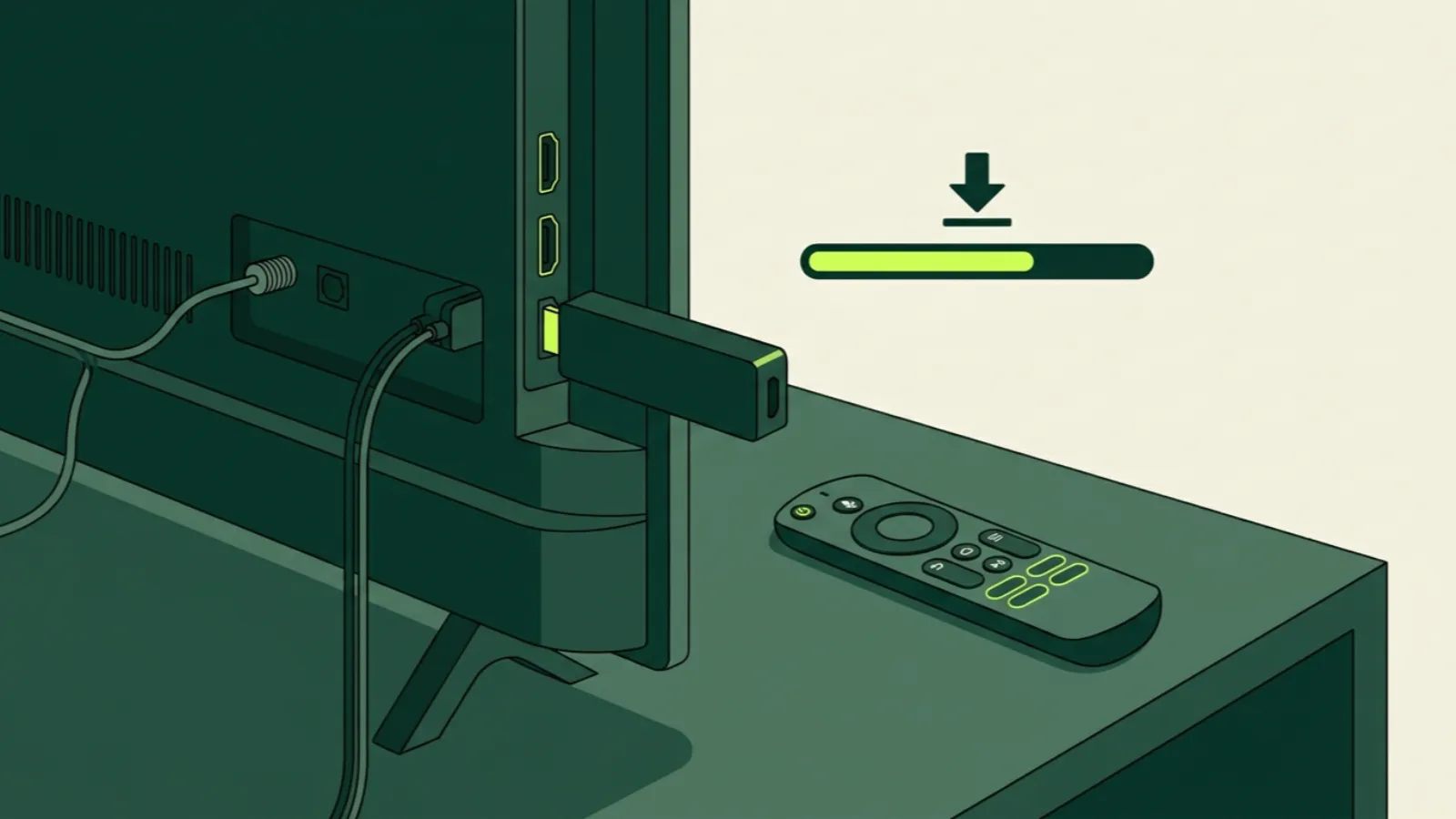
To install IPTV on a FireStick in 2026, you install the free Downloader app from the Amazon Appstore, allow Downloader to install apps, type ip2tv.us/app in Downloader, and install our app. Then you open it, scan the 6-character code with your phone, and the TV signs in. On most Fire TV Sticks the whole thing takes about ten minutes, and most of that is waiting for downloads.
The one 2026 wrinkle: some newer Fire TV models run Amazon’s Fire OS “Vega,” which isn’t built on Android and may block installing apps from outside the Appstore. If that’s your device, there are still ways to watch, covered near the end.
If you just want the short version with a video, our FireStick setup guide has it. This article goes slower and spends most of its time on what goes wrong and how to fix it.
What you need before you start
- A FireStick or Fire TV device, updated (Settings, My Fire TV, About, Check for Updates).
- Your Amazon account signed in on it (needed for the Appstore).
- At least about 500 MB of free storage. Check under Settings, My Fire TV, About, Storage.
- An IP2TV account, or a 36-hour free trial with just an email.
- Your phone nearby for the sign-in code.
Step 1: Install Downloader from the Amazon Appstore
- From the Fire TV home screen, go to Find (the magnifying glass) and choose Search.
- Type Downloader. Pick the app with the orange icon, published by AFTVnews.
- Select Get or Download. It’s free.
- Don’t open it yet.
Downloader is a simple browser-plus-file-downloader made for Fire TV. It’s how you get apps that aren’t in Amazon’s store.
Step 2: Turn on “install unknown apps” for Downloader
Fire TV blocks app files from outside the Appstore by default. You allow it per app.
- Go to Settings (the gear), then My Fire TV.
- Open Developer Options. If you don’t see it, go to About, highlight your device name, and press the select button about seven times until it says you’re a developer. Go back and it’s there.
- Choose Install unknown apps (on older software this is a single switch called Apps from Unknown Sources).
- Find Downloader in the list and turn it On.
This permission only applies to Downloader. Other apps on your FireStick can’t install anything.
Step 3: Download the app with ip2tv.us/app
- Open Downloader. Allow it to access files if it asks.
- Click the address box, type ip2tv.us/app, and select Go.
- The download starts. When it finishes, the Fire TV installer opens.
- Select Install, then Done (not Open yet).
- Downloader asks if you want to delete the installer file. Choose Delete, then confirm. The app stays installed; you’re just freeing space.
Step 4: Sign in with the code
- Go back to the home screen, then Apps (the three-squares icon) to find the new app. Press the menu button on it and choose Move to front so it’s easy to reach.
- Open it. It shows a 6-character code and a QR code.
- On your phone, scan the QR or go to ip2tv.us/tv and enter the code.
- The FireStick signs in. Your channels, guide and movie library load.
No username or password typed with the remote. If you later want to use a different player app, your login details are in your welcome email and work in any Xtream-capable app.
Troubleshooting: fixes for the errors people actually hit
Downloader says “This site can’t be reached” or nothing happens
- Check the address for typos: ip2tv.us/app, no “www,” no spaces.
- Open another app that streams (anything) to confirm the FireStick is online.
- Restart the FireStick: hold Select and Play/Pause together for about five seconds.
- If your home network blocks certain sites (some routers and parental controls do), try once from a phone hotspot to rule it out.
“App not installed” or the install fails partway
This is almost always storage. FireSticks have little of it, and app caches fill it fast.
- Go to Settings, Applications, Manage Installed Applications. Uninstall apps you don’t use, and use Clear cache on the big ones.
- Delete old installer files: in Downloader, open the Files section and remove anything there.
- Then repeat Step 3.
“There was a problem parsing the package”
The download got cut off or your Fire OS is too old for the app.
- Update the FireStick (Settings, My Fire TV, About, Check for Updates) and restart.
- Download again in Downloader, and don’t navigate away while it runs.
I can’t find the app after installing
New apps don’t always show on the home row. Open Apps (three squares, or long-press Home and pick Apps). It’s at the end of the list. Use Move to front.
The code screen doesn’t sign in
- Make sure the phone has internet (Wi-Fi or data is fine; it doesn’t have to be the same network).
- If the code screen has been sitting for a long time, close the app, open it again, and use the fresh code it shows.
- Check the code letters carefully if you typed instead of scanning. The QR avoids typos.
It installed, but channels buffer
Installation is fine, it’s the stream path. A FireStick on the back of a TV often gets weak Wi-Fi. Our buffering checklist goes through it step by step, starting with a test at the time of day you actually watch. An HDMI extender (often in the FireStick box) moves the stick out from behind the TV and can help Wi-Fi a lot. For HD, about 25 Mbps per stream is comfortable.
“Fire TV says it can’t install apps from outside the Appstore”
You may have one of the newer models on Fire OS Vega. See the next section.
Newer Fire TV models and Fire OS Vega
Amazon has been moving some newer Fire TV devices to Fire OS Vega, a system that isn’t based on Android. On those, Developer Options may not include an install unknown apps setting, and Android app files won’t install.
To check, go to Settings, My Fire TV, About and look at the device name and software version. If you’re about to buy a stick, look up the specific model before you order; don’t assume every “Fire TV Stick” box works the same.
If yours can’t sideload, you still have options:
- Web player: if your model has a web browser, open player.ip2tv.us, and sign in with the same 6-character code from your phone.
- Appstore player apps: search the Amazon Appstore for an IPTV player that supports Xtream login (username, password and server address from your welcome email). Availability changes, so check what’s listed today.
- A different stick: a Google TV or Android TV stick installs our app or any Xtream player from Google Play. The Android TV guide covers it.
Alternatives to our app on FireStick
Our app is the simplest because of the sign-in code, but it’s not your only choice on a regular (Android-based) FireStick:
- IPTV Smarters or TiviMate installed through Downloader or the Appstore, signed in with Xtream login. Our FireStick guide shows the Smarters route.
- An M3U link in any app that accepts playlists.
You can use our app on one TV and a different player on another. What counts is how many streams play at once, not how many apps you install. Our article on how multiple screens work explains it.
After it’s working: three small habits
- Leave Downloader installed but turn its unknown apps permission off if you like. Turn it back on only when you update.
- Clear the app’s cache every month or two (Settings, Applications, Manage Installed Applications) if the guide gets slow.
- Restart the stick once a week. FireSticks run better after a restart, and it takes 30 seconds.
Still stuck? Email [email protected] with your Fire TV model (from the About screen), the exact error text, and which step you were on. A person reads it and writes back. When you’re ready to keep it, plans start at one screen, and the setup guides page covers every other device in the house.
