
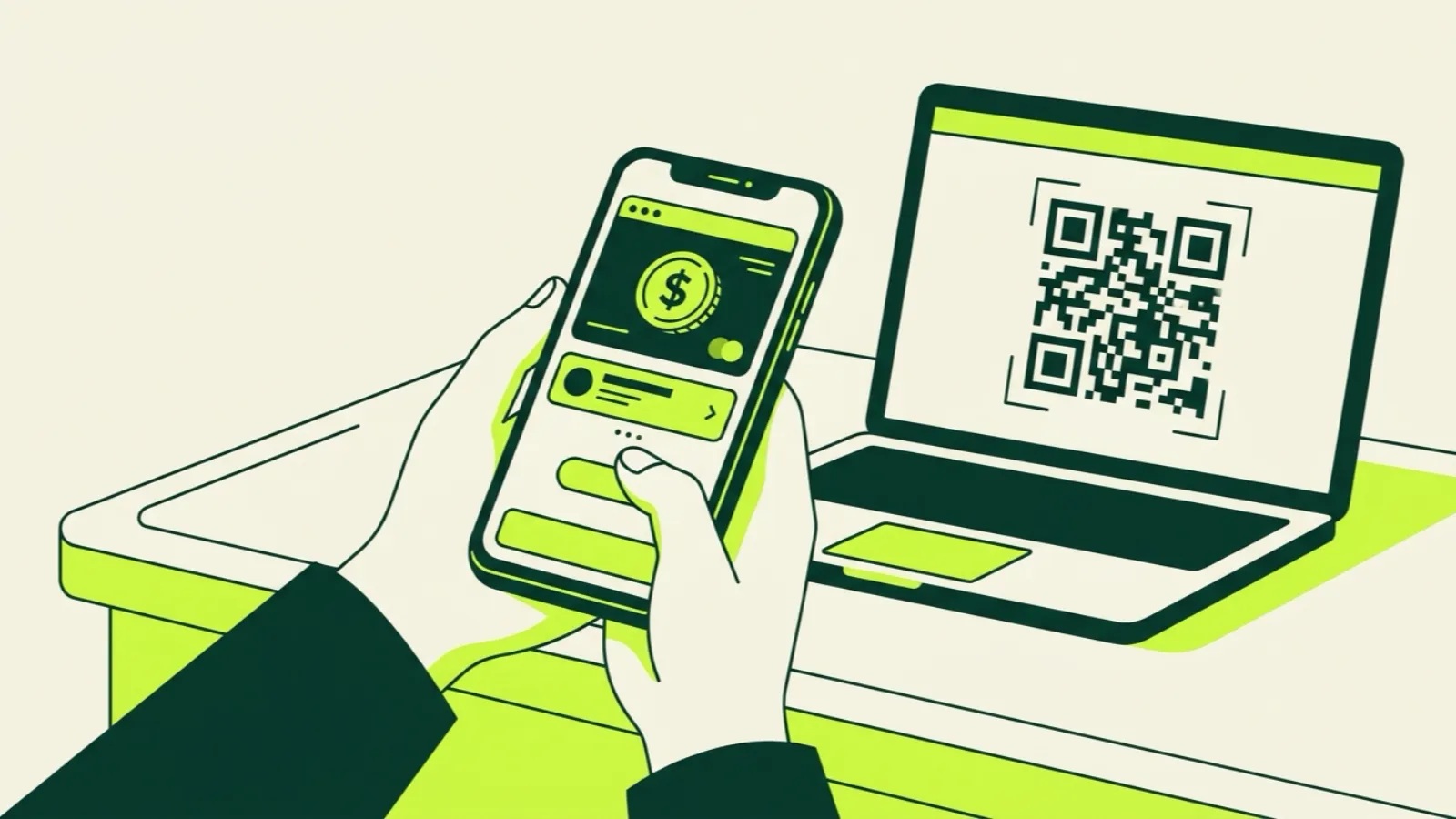
You can pay for IPTV with PayPal USD (PYUSD) entirely from the PayPal app on your phone. You buy PYUSD with your PayPal balance or bank, open our checkout page, copy the wallet address and amount it shows, and send the PYUSD to that address from PayPal. It takes about five minutes the first time, and it’s 15% off the list price.
Below is each step, what the network fee means for the amount you send, what to do if the payment comes up short, and the basics if you’d rather pay with USDT or USDC. If you haven’t tried the service yet, do the 36-hour free trial first. It needs an email only, no card.
Why PayPal USD instead of a card?
Card payment isn’t available at IP2TV right now. We take PayPal USD from the PayPal app, or crypto such as USDT and USDC, through a checkout page. Both options are 15% off the list price.
There’s also a safety upside. You never type a card number on our site, and the payment goes out from an app you already trust. That matters, because card-skimming checkout pages are one of the most common IPTV scams. We explain how to spot them in how to spot an IPTV scam.
What you’ll pay with the 15% discount
Here’s what one screen costs with PayPal USD or crypto. Our math, list price minus 15%:
| Plan, 1 screen | List price | With 15% off |
|---|---|---|
| 1 month | $19 | $16.15 |
| 6 months | $56 | $47.60 |
| 12 months | $79 | $67.15 |
Two screens for 12 months is $119 list, or $101.15 with the discount. All plans are on the pricing page. There’s no contract and no auto-renewal; when your term ends, the line stops until you choose to renew.
The checkout page always shows the exact amount for your order. Go by that number, not this table.
Before you start: what you need
- The PayPal app, signed in, on a US account.
- Crypto features turned on. PayPal may ask you to verify your identity before you can buy or send crypto, and its crypto features aren’t available in every state. If you don’t see a Crypto section, check PayPal’s help pages for your state.
- A way to fund the purchase: PayPal balance, linked bank account or debit card inside PayPal.
- Your order open on our checkout page, ideally on a computer or a second screen, so you can copy the address easily.
Step by step: paying with PayPal USD
Step 1: Start your order
Go to the pricing page, choose your plan and screen count, and continue to checkout. Pick PayPal USD as the payment method. The checkout page will show three things: the amount to send, the network to use, and a wallet address. Keep that page open.
Step 2: Buy PayPal USD in the app
In the PayPal app, open the Crypto section and choose PayPal USD. Tap Buy and buy a little more than the checkout amount, a dollar or two extra, to leave room for any network fee in the next step. PayPal shows its own price and any fee before you confirm.
Because PYUSD is designed to stay at $1, a $20 purchase gives you about 20 PYUSD.
Step 3: Choose Send and paste the checkout address
Still in PayPal USD, tap Send, and choose the option to send to an external wallet address (not to a PayPal contact). Copy the wallet address from our checkout page and paste it in.
Check the first four and last four characters against the checkout page. Wallet transfers can’t be reversed, so a wrong address means lost money.
Step 4: Pick the matching network
PayPal may ask which network to send on. Choose the network our checkout page shows. If the network on our checkout isn’t offered in your PayPal app, stop and email [email protected] before sending anything. Sending on the wrong network is the one mistake that’s hard to fix.
Step 5: Enter the amount, then check the fee
Enter the amount from the checkout page. Before you confirm, PayPal shows a network fee and the total. Look carefully at whether the fee is added on top of what you send or taken out of it.
What matters is that the amount arriving at the checkout address is at least the order amount. If the fee would come out of the amount, increase what you send so the amount received still matches.
Step 6: Confirm and wait
Confirm the send. PayPal shows a transaction you can open later to find the transaction ID. Our checkout page usually updates on its own once the network confirms the payment, which can take from under a minute to several minutes depending on the network.
Once it’s paid, you get your line details. Then pick your device in the setup guides, or open the web player at player.ip2tv.us right away.
What if the amount is short?
It happens, almost always because a network fee came out of the amount sent. The checkout will show the order as not fully paid.
Here’s what to do:
- Don’t start a new order. A second order creates a second address and makes it harder to match your payments.
- Find the transaction ID in PayPal. Open the PYUSD activity, tap the send and copy the ID.
- Email [email protected] with the email you used at checkout and the transaction ID. A person reads these.
- Wait for our reply before sending more. We’ll confirm exactly how much is missing and where to send it, so you don’t overpay or send to an expired address.
If you sent more than needed, mention that in the email too.
Paying with USDT or USDC instead
If you already hold crypto, you can pay with USDT or USDC, among other options, at the same 15% off. Both are dollar-pegged stablecoins, so the amount you send stays close to the dollar price.
The basics are the same as with PayPal USD:
- Choose the coin and network at checkout, then send from your exchange or wallet to the address shown.
- Match the network exactly. USDT and USDC exist on several networks. The coin and network you send on must match the checkout. A mismatch can lose the payment.
- Watch the fee. Exchanges often take the withdrawal fee out of the amount you send. Add enough so the received amount covers the order.
- Copy and paste addresses, never type them, and check the start and end characters.
- Keep your transaction ID (also called a hash) in case you need to email us.
If you’re new to crypto, PayPal USD is usually the simpler path, because everything happens in an app you already use.
A few safety habits
- Only send to the address shown on your own checkout page, never to an address someone sends you in a message.
- Do a small test order first if you’re nervous: one month on one screen is $16.15 with the discount.
- Remember refunds are possible only before activation, as our refund policy explains. That’s why a trial and a single month are the smart start.
After you’ve paid
Most people are watching within minutes. If you use a FireStick, the FireStick install guide gets you set up. If more than one person will watch at once, check how multiple screens work so you know your plan covers it.
Last checked: November 2026. App menus and fees can change; follow what PayPal shows on screen.
